Help
Screen sharing, step by step
What happens when a customer joins a consultation, what you control, and what to try if sharing does not start. Support teams can read the overview for teams.
Joining with a code
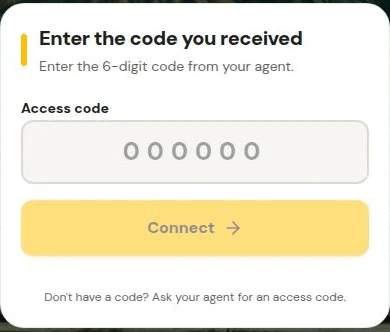
Your agent gives you a six-digit code. Enter it on the customer page. The code is single use and expires after three minutes. That expiry applies only to the code: once you have joined, the live session is separate and is not cut off by the code's timer. If the code fails or has expired, ask the agent for a new one.
Consent, then you choose to share
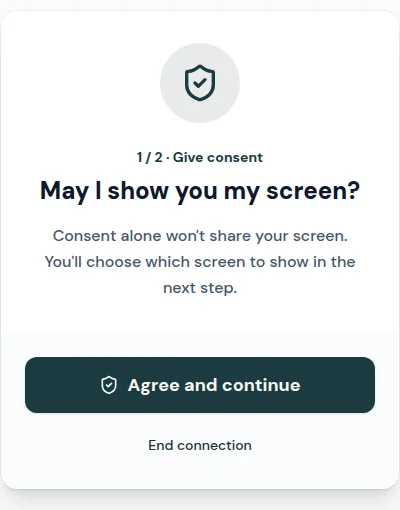
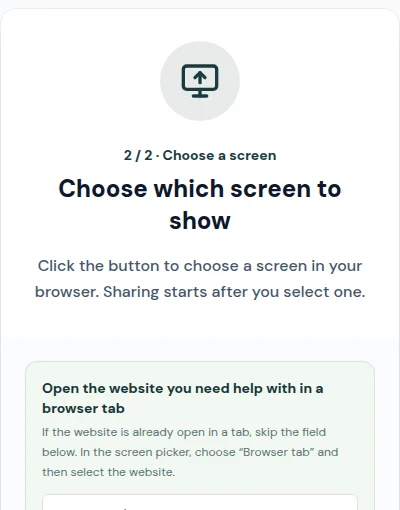
If the consultation is for sharing your screen, you are first asked to consent. Consent does not open the browser picker and does not share anything. After you agree, you click the control to choose a screen. Only then does your browser show its own picker, which offers whichever tab, window or full-screen options that browser makes available; these vary by browser. Select an option and press Share. Sharing is complete only once the streams connect between you and the agent.
Choose what you show
- Do not expose passwords, payment details or other personal data. Hide or close anything you would not want the agent to see.
- Close unrelated windows, and prefer sharing a single narrow browser tab over a window or whole screen.
- The service does not let an agent capture a hidden or unselected screen. The agent sees the surface you select, including new content that appears on that surface.
When the agent shares instead
An agent can share their own screen to show you what to do. In that direction your screen is not published. You only watch and wait until the agent's screen appears. If the agent changes what they are sharing, the view may pause for a moment rather than end the consultation.
Cancelling the picker or declining consent
Cancelled the picker? Nothing was shared. Click the control to choose a screen again and retry.
Do not want to consent? Do not agree or start sharing. Ask the agent for a consultation in which they share their screen instead. The code opens the sharing direction prepared by the agent; you are not required to publish your own screen.
If sharing will not start
- Operating system permissions: some systems require you to allow your browser to record or share the screen in privacy settings. Restarting the browser or refreshing the page after changing this ends the session, so you will need a fresh code from the agent.
- Browser capability: not every browser supports screen capture. Try a current desktop browser.
- Network: a weak or restricted connection, such as some corporate networks or VPNs, can stop the streams from connecting. Try another network if you can.
- Windowing: keep the browser windowed rather than fullscreen so you can see its sharing controls.
- Browser protection: never disable your browser's security or protection features to make sharing work. If something requires that, stop and tell the agent.
Phones and tablets
Viewing a shared screen and capturing your own screen are different capabilities, and availability depends on your browser and device. We have not verified a matrix of mobile browsers, so we cannot promise either will work on a particular phone or tablet.
When a consultation ends
Pressing Stop sharing, or closing or reloading the customer page, ends the consultation, and you will need a fresh code to rejoin. Switching to another browser tab is not the same and does not end it. If you shared a whole screen or window, other content you open may be visible to the agent. If the agent is the one sharing, your choice not to publish your screen is unchanged.
See also the Privacy Policy and Terms of Service. Teams can create a support desk.